
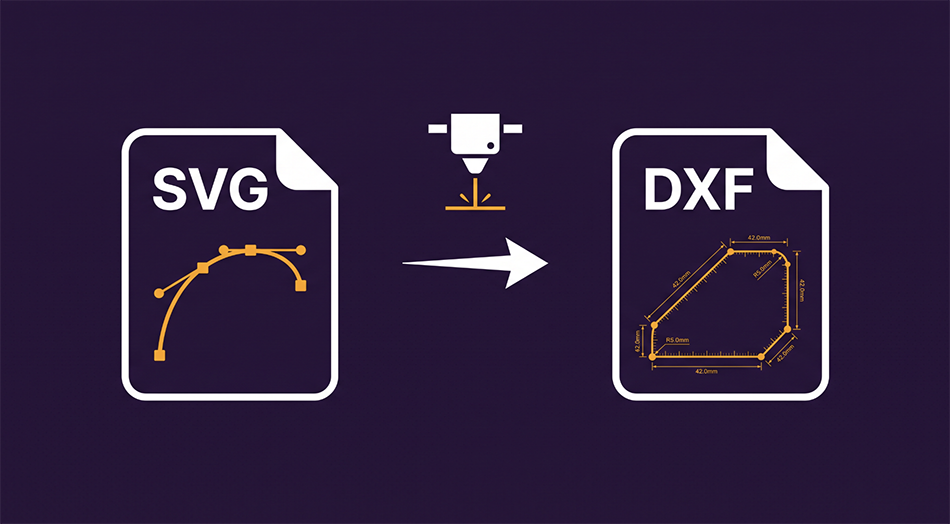
SVG to DXF — Built for Laser Cutters & CNC
A converter that gets the units right, keeps your layers, and produces files that actually open in LightBurn. Tested against Illustrator, Inkscape, and CorelDRAW exports — because your design should cut at the size you drew it.
Convert Your SVG Now →Why Most SVG to DXF Converters Fail
Ask any laser forum: free SVG-to-DXF converters are notorious for two failures. The first is wrong units — a 50mm design imports at 189mm, or 1.9mm, or some other multiple, because the converter ignored the SVG's real-world dimensions and guessed at pixels-per-inch. The second is flattened layers — your carefully separated cut and engrave layers arrive as one undifferentiated blob, and you spend twenty minutes reselecting paths in LightBurn.
This converter was built around those two problems. It reads the SVG's physical dimensions and viewBox to compute the exact scale, writes correct unit metadata into the DXF header, and maps your SVG layers to DXF layers so LightBurn assigns them to separate cut settings automatically. A 50mm square converts to a 50.000000mm square — we test at six decimal places.
What Makes This One Different
The tool reads your SVG's physical size (mm, cm, inches, points, or pixels) and computes the true scale. Output in millimeters or inches with proper unit metadata that CAD and laser software respects. Your dimensions survive the trip.
Layers from Illustrator, Inkscape, and CorelDRAW become DXF layers with their names intact. In LightBurn, each layer lands on its own color with independent speed and power settings — set your cut layer to full power and your engrave layer to a light pass, no reselecting.
Paths are reordered so each cut starts near where the last one ended, minimizing the time your laser head spends traveling between shapes. On a design with dozens of small elements, the difference is real minutes per job.
The entire conversion runs in your browser. Your design files are never uploaded, never stored, and never seen by anyone. If you sell your designs, nothing leaves your machine.
Tested, Not Assumed
We verified this converter against real exports from Adobe Illustrator, Inkscape, and CorelDRAW — including rotated shapes, nested transforms, multi-layer files, and large-format layouts over 1.5 meters wide. Output files were measured in CAD software and imported into LightBurn, where dimensions verified to within 0.05mm and layers mapped to independent cut settings. True circles are written as native DXF circle entities — mathematically exact, not faceted approximations.
Preparing Your SVG for Best Results
Use stroke-only shapes. Design cut lines as unfilled paths with a stroke. Filled shapes export from design tools as outline geometry — a filled, stroked circle can become three concentric cut lines (the fill boundary plus both stroke edges).
In Illustrator, align strokes to center. Inside- or outside-aligned strokes get converted to filled outlines during SVG export because SVG only supports center alignment. Stroke panel → Align Stroke → Center.
Convert text to outlines. DXF has no concept of your fonts. In Illustrator: Type → Create Outlines. In Inkscape: Path → Object to Path. The tool detects live text and warns you before converting.
Uncheck "Responsive" in Illustrator's SVG export. Responsive strips the physical width and height from the file, which removes the information needed to determine real-world scale.
Frequently Asked Questions
Will my dimensions be correct in LightBurn?
Yes — as long as your SVG contains physical dimensions (a width like "50mm" or "2in"), the output matches it exactly. If your SVG has no physical size (some web-exported files), the tool assumes the CSS standard of 96 pixels per inch, and you should verify scale after import.
What DXF version does it produce?
R12 (AC1009) — the most universally compatible DXF version. It opens in LightBurn, LaserGRBL, Fusion 360, AutoCAD, LibreCAD, and virtually every CAM program written in the last three decades.
How are curves handled?
Bezier curves are converted to polylines using adaptive subdivision at your chosen quality level — Standard keeps curves within 0.1mm of the true path, Fine within 0.02mm. Perfect circles are detected and written as native DXF circle entities, which stay mathematically exact.
What SVG features are supported?
Paths (all commands including arcs and curves), rectangles, circles, ellipses, lines, polylines, polygons, groups, and nested transforms. Text must be converted to outlines first, and embedded raster images are skipped — DXF is vector-only.
Why did my shape convert as multiple nested outlines?
Your shape has a fill, or its stroke was expanded to outlines. A filled shape's boundary and each edge of an expanded stroke are all real geometry, and each becomes a cut line. Redesign with stroke-only shapes for single clean cut paths.
Is there a file size limit?
No hard limit. We've tested layouts over 1.5 meters wide with dozens of complex paths. Very large files with thousands of paths may take a few seconds to convert since everything runs locally in your browser.
Ready to convert? Upload your SVG and get a DXF that cuts at the size you designed.
Convert Your SVG Now →