
Crop an Image Online — See Exactly What You're Keeping
Most crop tools make you guess. Ours shows you the selection live — drag the corners, lock an aspect ratio, and download only the part you want. All in your browser, with nothing uploaded to a server.
Crop Your Image Now →When You Need to Crop
Cropping is one of the most common image edits — and one of the most frustrating when you don't have the right tool open. Here's where people reach for a crop tool most often.
You have a great photo, but it's a full-body shot and the upload form wants a headshot. Crop to just your head and shoulders, lock to a square aspect ratio, and the result fits any profile picture slot without awkward whitespace or stretching.
Every platform has its own dimensions. Instagram posts need 1:1, YouTube thumbnails need 16:9, and Facebook covers are wider still. Instead of memorizing pixel sizes, lock the aspect ratio in the crop tool and drag until the composition looks right — the proportions handle themselves.
A screenshot with your browser tabs showing, a product photo with a messy background at the edges, or a scanned document with black borders from the scanner lid. Crop out the distracting parts and keep only what matters. Faster than opening Photoshop for a five-second edit.
Print layouts need precise proportions. A 4×6 print needs a 3:2 crop. A business card background needs a specific rectangle. Lock the ratio, position the crop exactly where you want it, and the output is ready for the printer without trial-and-error resizing later.
How the Crop Tool Works
Upload and see your image instantly. Drop a photo or click to choose — it loads directly in the browser with a crop overlay on top. No waiting for an upload, no progress bar, no server processing.
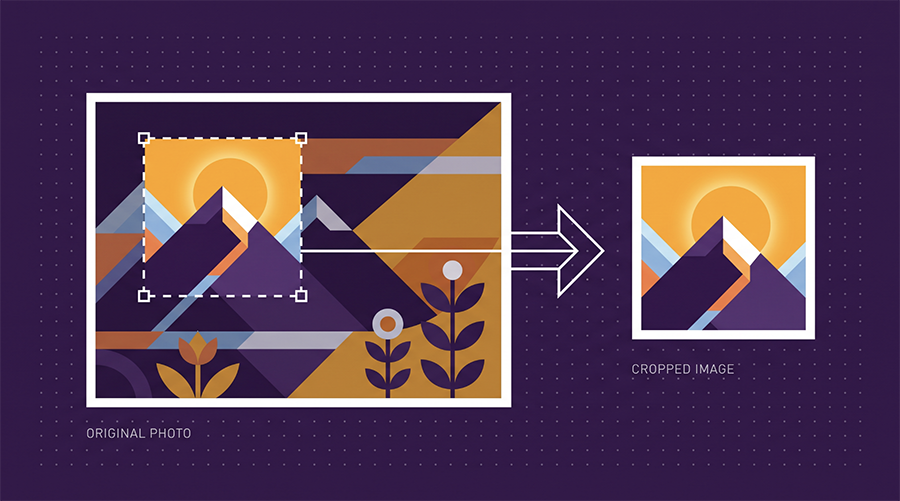
Drag the corners to select. The crop rectangle is fully resizable and repositionable. Grab any corner or edge to adjust, or drag the center to move the selection. The dimensions update live so you always know exactly what size the output will be.
Lock an aspect ratio or go freeform. The preset buttons — Free, 1:1, 16:9, 4:3, 3:2 — lock the crop rectangle to that proportion. Switch between them at any time. Free mode lets you drag to any shape without constraints.
Output keeps the original format. If you upload a JPG, you get a JPG. PNG stays PNG, WebP stays WebP. HEIC files from iPhones are automatically converted to JPG before cropping. The output quality matches the original — no unnecessary recompression.
Crop vs. Resize — What's the Difference?
People confuse these constantly, but they do very different things. Cropping removes parts of the image — you're cutting away the edges and keeping a smaller area at the original resolution. Resizing changes the pixel dimensions of the entire image — the whole photo gets bigger or smaller, but nothing is cut off.
If you need to remove unwanted edges or focus on a specific area, crop. If you need to change the overall dimensions (for example, shrinking a 4000px image to 800px for a website), use the resize tool. Often you'll want both — crop first to get the right composition, then resize to hit exact pixel dimensions.
Your Files Never Leave Your Device
The photos people crop are often personal — selfies, ID photos, client work, screenshots of private conversations. Most online crop tools upload your image to a remote server, process it there, and send the result back. Your photo sits on someone else's infrastructure, at least temporarily.
Web Tools Better works differently. Cropping happens entirely in JavaScript inside your browser using the Canvas API. Your files never leave your device, never touch our servers, and are never stored anywhere. When you close the tab, the processing is gone. No account required to try it — and no trust required either, because your images never leave your hands.
Ready to crop? Drop your image and drag to select exactly what you want.
Crop Your Image Now →