
Convert Images to PDF — Combine Photos Into One Document
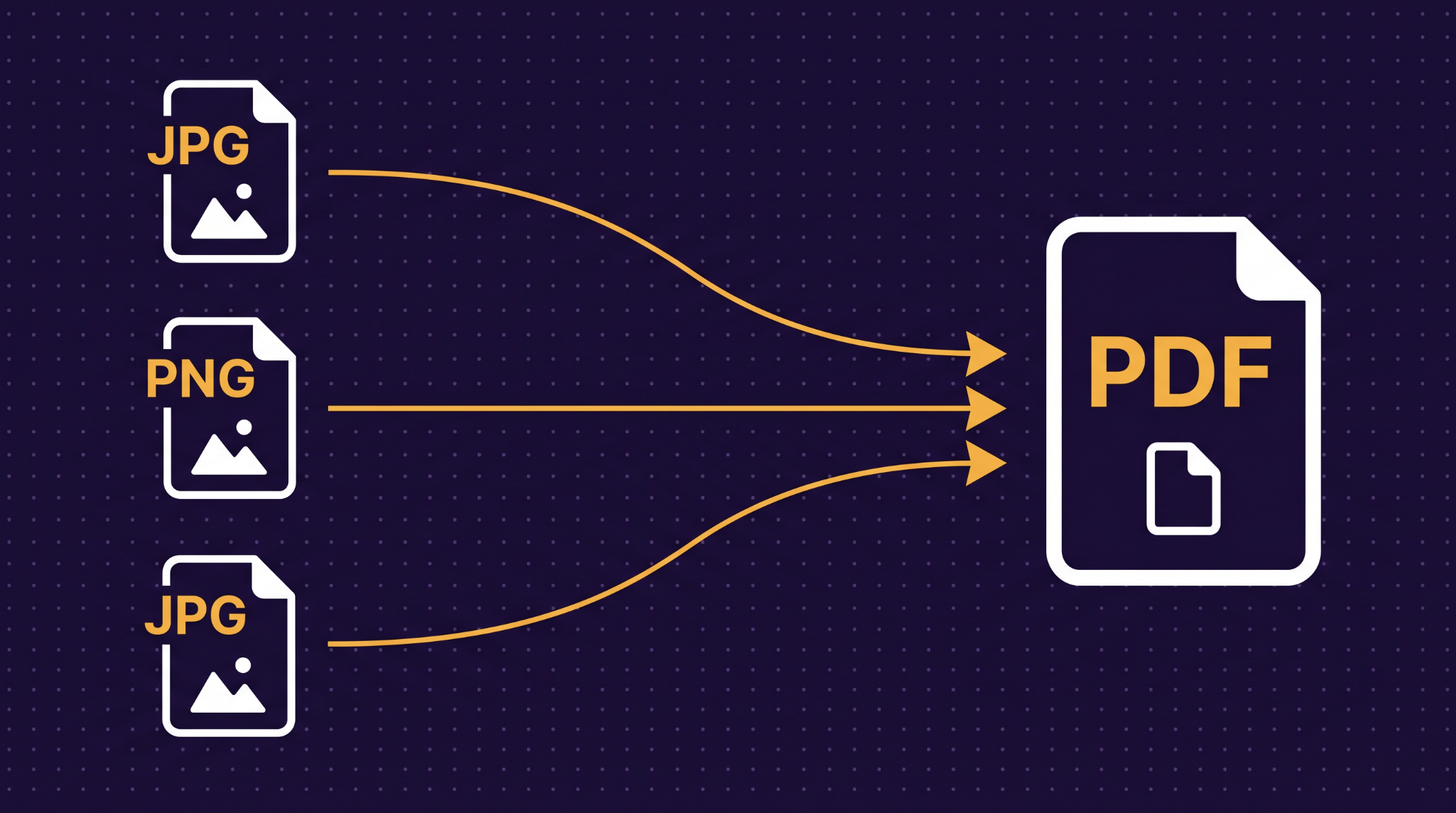
Need to submit photos as a PDF? Upload forms, insurance claims, and document portals require PDF format — not loose image files. Our browser-based tool turns up to 20 images into a single PDF in the order you choose, without uploading anything to a server.
Convert Images to PDF Now →When You Need Images as a PDF
Loose image files work fine in a photo library, but the moment you need to submit, share, or archive them formally, PDF is what's expected. Here are the situations that bring people to this tool every day.
Your insurance company wants photos of the damage — but their portal only accepts PDF. You've got 15 photos on your phone and no way to turn them into a document. Convert them all into a single PDF with one photo per page, upload once, and the claim moves forward.
You photographed a multi-page document with your phone — each page is a separate JPG in your camera roll. Converting them to a single PDF turns a pile of photos into a proper document. The pages stay in order, and the result looks like it came from a real scanner.
Clients and agencies expect portfolios as PDFs — something they can scroll through, forward to a team, or print. Exporting from design software works if you have it, but when your images are ready and you just need them combined into pages, this is faster than opening Photoshop or InDesign.
Many upload portals only accept PDF — not JPG, not PNG, just PDF. Visa applications, government benefit forms, and HR onboarding systems frequently have this restriction. If you have photos of supporting documents, converting them to PDF is the only way to get them through the portal.
Page Size Options
Fit to image makes each page exactly the dimensions of the image. There are no margins, no white space — the page is the image. This is the best choice when you're creating a portfolio, a lookbook, or any document where the visual content should fill the entire page.
US Letter and A4 place each image centered on a standard-size page with half-inch margins. The image scales down to fit within those margins if it's larger than the page, but never scales up — small images stay their original size rather than getting stretched and pixelated. This is the right choice when the PDF needs to look like a printed document, or when you're combining images of different sizes and want consistent page dimensions.
What to Know About the Output
Each image becomes one page. The tool places one image per page in the order you set. Use the arrow buttons to rearrange before creating the PDF.
The PDF contains images, not searchable text. If your photos are of typed documents, the text in them is part of the image — it's not selectable or searchable. For that, you'd need OCR software. This tool is for combining images into pages, not for converting images to editable text.
HEIC photos from iPhones work. If your images are in Apple's HEIC format, the tool converts them to JPG automatically before placing them in the PDF. No separate conversion step needed.
Need a smaller result? If the output PDF is too large for your upload limit, run it through our PDF compression tool to shrink it down.
Your Files Never Leave Your Device
The photos people need to convert are often personal or sensitive — ID scans, medical images, property damage photos, signed documents. Most online image-to-PDF tools upload your files to a remote server, build the PDF there, and send it back. Your photos sit on someone else's infrastructure, at least temporarily.
Web Tools Better works differently. The conversion happens entirely in JavaScript inside your browser using pdf-lib. Your files never leave your device, never touch our servers, and are never stored anywhere. When you close the tab, the processing is gone. No account required to try it — and no trust required either, because your images never leave your hands.
Ready to convert? Drop your images and get a PDF in seconds.
Convert Images to PDF Now →