
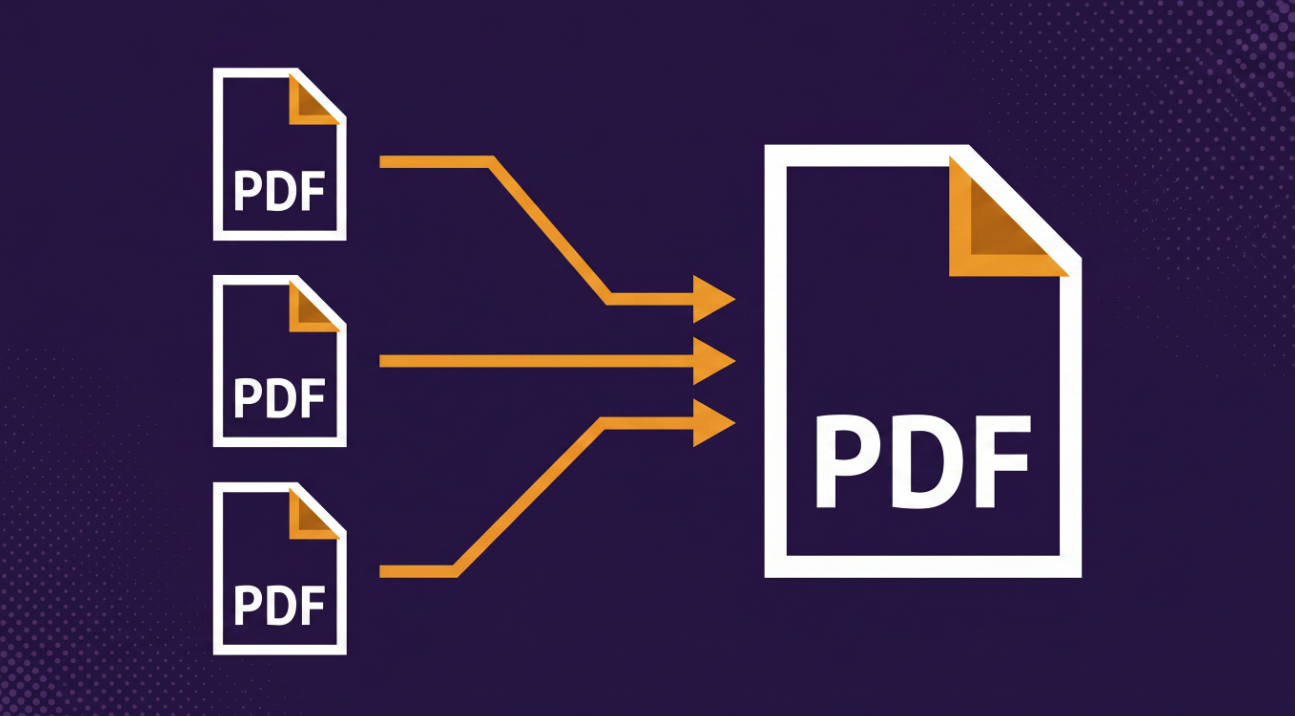
Merge PDFs Into One File — Combine Documents in Seconds
Need to submit one file but have three? Job applications, expense reports, and legal packets all expect a single PDF. Our browser-based tool merges up to 20 PDFs into one — in the order you choose — without uploading your files to any server.
Merge Your PDFs Now →When You Need to Merge
Merging PDFs sounds simple until you realize how often you actually need it. Here are the situations that send people searching for a merge tool every day.
Most application portals give you one upload slot. You've got a resume PDF and a cover letter PDF, and the form won't take two. Merge them into a single file — cover letter first, resume second — and upload once. Some portals also ask for references or transcripts in the same file, so being able to combine three or four documents matters.
Finance and accounting departments want one PDF, not twelve email attachments. Merge your hotel receipt, flight confirmation, Uber receipts, and meal invoices into a single document. It's faster for the person approving it, and it keeps your reimbursement from getting lost in someone's inbox.
Legal documents accumulate pieces: the main agreement, a signed signature page, an addendum from last month, and three exhibits. Merge them into one executed copy for filing or sending to opposing counsel. The alternative — emailing five separate PDFs — looks unprofessional and invites confusion about which version is complete.
Academic submissions often require a single PDF: your paper, supplementary tables, a bibliography, and a signed honor statement. Many submission portals (Turnitin, university upload systems, conference review sites) accept exactly one file. Merge everything in order, upload once, and you're done.
What Stays the Same After Merging
Formatting carries over exactly. Each source PDF is stitched into the output page by page. Text, images, headers, footers, and layout within each page stay exactly as they were. You're not re-rendering anything — you're combining existing pages into one container.
Hyperlinks and bookmarks transfer. If your original PDFs contain clickable links, table-of-contents bookmarks, or internal cross-references, those carry into the merged file. External hyperlinks (URLs) work the same way they did in the source document.
Page sizes may vary. If one PDF is letter-size and another is A4, the merged file will contain both page sizes — each page retains its original dimensions. This is normal and matches how every professional PDF tool handles it.
File size is roughly additive. A 2MB PDF merged with a 3MB PDF produces a file close to 5MB. There's no recompression during the merge, so you're not losing quality and you're not inflating the file. If the result is too large for your needs, run it through our PDF compression tool afterward.
Your Files Never Leave Your Device
The documents people merge are often the ones they'd least want on someone else's server — signed contracts, tax receipts, legal filings, medical records, employment paperwork. Most online merge tools upload every file to a remote server, combine them there, and send the result back. Your documents sit on someone else's infrastructure, at least temporarily.
Web Tools Better works differently. The merge happens entirely in your browser using pdf-lib. Your files never leave your device, never touch our servers, and are never stored anywhere. When you close the tab, the processing is gone. No account required to try it — and no trust required either, because your documents never leave your hands.
Ready to merge? Drop your PDFs, set the order, and combine them in seconds.
Merge Your PDFs Now →