
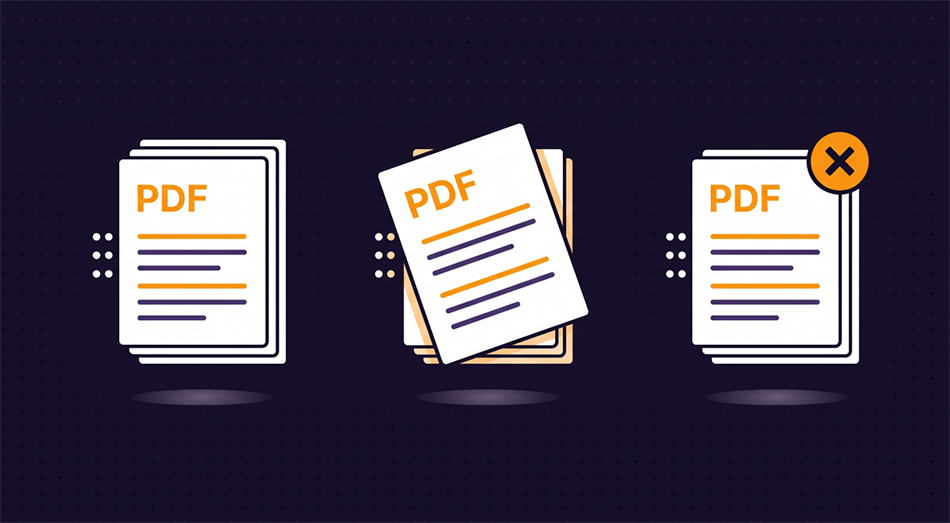
Organize PDF Pages — Reorder, Rotate & Delete Online
Scanned pages in the wrong order? Sideways pages in a contract? Blank pages you don't need? Drag and drop to fix it all in seconds — your PDF never leaves your browser.
Organize Your PDF Now →When You Need to Reorganize a PDF
PDFs are supposed to be finished documents, but they rarely arrive that way. Scanners feed pages out of order. Someone emails you a contract with a sideways signature page. A report has five blank pages at the end. You need the pages fixed before you can send the file on.
Batch scanning often produces pages in reverse order or with a few pages out of sequence. Instead of re-scanning, drag the thumbnails into the right order and save. Faster than fighting with your scanner's software.
Landscape tables and signature pages end up sideways in an otherwise portrait document. Rotate just the pages that need it — 90° left or right — without affecting the rest. The recipient sees every page right-side up.
Printers and scanners love inserting blank pages. Legal documents come with cover sheets you don't need to forward. Hit the ✕ on any page to drop it from the output — no need to rebuild the whole file.
A 40-page report where only pages 3–12 matter to your audience. Remove everything else, reorder if needed, and send a focused document instead of telling people which pages to skip to.
How It Works
Upload your PDF and every page renders as a thumbnail you can see and interact with. Drag any thumbnail to a new position to reorder. Click the rotate buttons to turn a page 90° left or right. Click ✕ to remove a page entirely. When you're satisfied, hit save — the tool rewrites the PDF in your new order with your rotations applied, and downloads the result.
Everything runs in your browser using pdf.js for rendering and pdf-lib for rewriting. Your file is never uploaded to a server, never stored, and never seen by anyone but you.
What Carries Over
Text, images, and formatting stay intact. The tool copies each page exactly as it exists in the original PDF — it's rearranging and rotating pages, not re-rendering them. Links, form fields, and annotations carry over to the output.
File size stays close to the original. Since pages are copied rather than recompressed, a 10-page PDF that becomes 7 pages will be roughly 70% of the original size. If you need the result smaller, run it through our PDF compression tool afterward.
Frequently Asked Questions
Is there a page limit?
No hard limit. The tool renders a thumbnail for every page, so very large PDFs (100+ pages) may take a moment to load, but they'll work. For best performance, use PDFs under 50 pages.
Can I undo a change?
There's no undo button, but nothing is saved until you hit "Save Organized PDF." If you make a mistake, click Remove on the file card and re-upload to start fresh.
Does it work on phone?
Yes. The thumbnails display in a scrollable grid on mobile. Drag and drop works on most mobile browsers, and the rotate and delete buttons are tap-friendly.
Is my file uploaded anywhere?
No. All processing — thumbnail rendering, reordering, rotation, and PDF rewriting — happens entirely in your browser. Your file never leaves your device.
Can I merge pages from different PDFs?
This tool works with one PDF at a time. If you need to combine pages from multiple PDFs, use our Merge PDF tool first, then organize the result here.
Ready to fix your PDF? Drop it in and drag pages where they belong.
Organize Your PDF Now →