
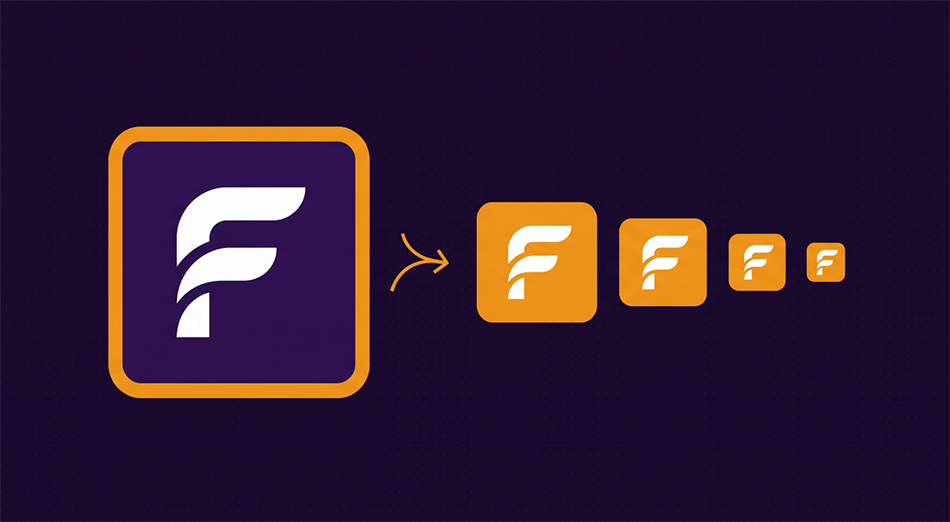
Generate Every Favicon Size from One Image
Stop manually resizing your icon for every platform. Upload a single image and get a complete favicon set — 16×16, 32×32, 180×180, and 512×512 — zipped and ready to drop into your site. Your image never leaves your browser.
Generate Favicons Now →Why You Need More Than One Favicon
Every browser, operating system, and device expects a different icon size. A 32×32 favicon looks fine in a browser tab, but it turns into a blurry mess on an iPhone home screen. Apple devices want a 180×180 touch icon. Progressive Web Apps need a 512×512 manifest icon. If you only provide one size, something somewhere will look wrong.
Our favicon generator takes your source image and creates all four sizes at once, using a multi-step downscaling algorithm that keeps small icons crisp even from a large source. Everything happens in your browser — your image is never uploaded to a server.
When to Use This
Get every favicon size handled in one step instead of opening an image editor four times. The tool also gives you a ready-to-paste HTML snippet with the correct link tags — copy it into your head tag and you're done.
Swapping your logo? Regenerate the full favicon set in seconds and drop the files into your project. No need to remember which sizes go where — the filenames follow web standards and the HTML snippet handles the rest.
Progressive Web Apps require a 512×512 icon for the web app manifest. Without it, your app won't pass installability checks and won't show a proper icon on home screens. This tool includes the 512×512 size automatically.
If your site shows a blank square or a tiny screenshot when someone adds it to their iPhone home screen, you're missing the 180×180 apple-touch-icon. This is one of the most common favicon oversights — and one of the easiest to fix.
What You Get
A single zip file containing four PNG favicons named to web standards:
favicon-16x16.png, favicon-32x32.png,
apple-touch-icon.png (180×180), and favicon-512x512.png.
The tool also gives you a ready-to-paste HTML snippet with the correct
<link> tags — copy it into your <head> and you're done.
Tips for Best Results
Start with a source image that's at least 512×512 pixels. Simple shapes with bold colors work best — detailed photos lose all their clarity at 16×16. If your logo has fine text, consider a simplified icon version for favicons. Square images produce the cleanest output since all favicon sizes are square.
Frequently Asked Questions
What image formats can I upload?
PNG, JPG, WebP, and HEIC. The tool converts everything to PNG for the output since PNG supports transparency and is the standard favicon format for modern browsers.
Why no ICO file?
ICO is a legacy format from Internet Explorer. Every modern browser — Chrome, Firefox, Safari, Edge — uses PNG favicons. Unless you need to support IE 10 or earlier, PNG covers everything you need.
Is my image uploaded to a server?
No. All resizing and zipping happens entirely in your browser using Canvas and JSZip. Your image never leaves your device.
What if my source image isn't square?
The tool will scale it to fit each square size. For best results, crop your image to a square before uploading so nothing gets stretched or cut off.
Where do I put the favicon files?
Unzip the download into the root of your website so they're accessible at /favicon-16x16.png, /favicon-32x32.png, and so on. Then paste the HTML snippet from the success screen into your <head> tag.
Ready to generate your favicons? Upload one image and get every size you need.
Generate Favicons Now →