
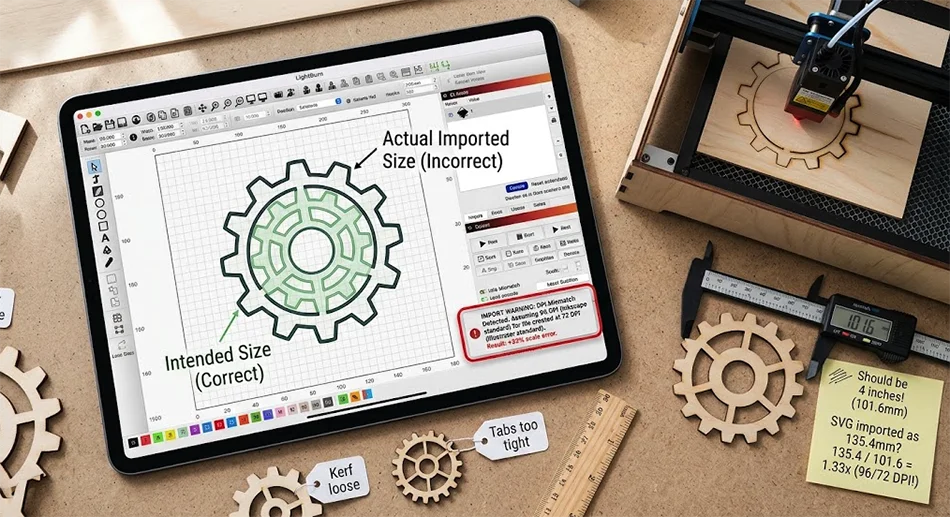
Why Your SVG Imports at the Wrong Size in LightBurn (And How to Fix It)
Here is the clue almost everyone misses: when an SVG imports into LightBurn at the wrong size, the number is almost never random. It is exactly 33% too big. Or exactly 25.4 times too small. Or some other figure that keeps turning up on the same files.
Random would mean something is broken. A number that lands on the same value every time means something is being assumed — and once you know which assumption, the fix takes about four seconds. If you already know the cause and just want the file fixed properly, our SVG to DXF converter writes real units into the output so the guessing stops.
An SVG file does not really have a size
This is the part that trips up anyone coming from a design background, because it feels obviously untrue. You drew a 3-inch box. Illustrator says 3 inches. Inkscape says 76.2mm. How can the file not know?
Because an SVG stores coordinates, and coordinates are just numbers. A square might be 288 units wide. Whether 288 units means 3 inches or 76.2mm or something else entirely depends on a conversion the file only sometimes specifies — and when it doesn't, the software opening it picks one for you.
Two programs can both be reading the same file correctly and still disagree about how big it is. Neither is broken. They are making different assumptions about what a unit means.
The 33% case: 96 DPI versus 72 DPI
This is the common one, and the arithmetic gives it away. 96 divided by 72 is 1.333. So a file authored on the assumption of 72 units per inch, read by something assuming 96, comes out exactly a third too large.
Those two numbers are not arbitrary. 96 is Inkscape's default. 72 is Illustrator's. LightBurn's SVG import setting ships at 96, which is right for most files and wrong for anything that came out of Illustrator without explicit units.
The fix lives in LightBurn's own settings, under the SVG import DPI option. Switch it to 72, re-import, and check the dimensions. If it was 33% out, it will now be right — no conversion needed, no tool required.
Two things worth knowing before you rely on that. It is a global preference, not a per-file one, so if you change it for one job it stays changed for the next — and the next file may well be the other kind. And it only helps when the mismatch really is 72 versus 96. If your file is off by some other factor, this setting will not rescue it.
The 25.4 case: millimetres versus inches
25.4 is the number of millimetres in an inch, so when a design turns up 25.4 times too big or too small, the two programs are disagreeing about the unit itself rather than the resolution.
This shows up most often with files exported from CAD tools, or from anything that was working in real-world dimensions rather than screen pixels. There is no DPI setting that fixes it, because DPI is not the problem — the only reliable answer is to convert the file to DXF with the units declared, which is covered further down.
Why "just resize it" is a worse fix than it looks
The obvious response is to select everything, type the dimension you wanted, and cut. For a decorative engraving, that is genuinely fine.
For anything that has to fit together, it is not, and here is why.
- Scaling is uniform, kerf is not. Your laser removes a fixed width of material, roughly the same on a 3mm tab as on a 300mm panel. Scale a design down and every joint's tolerance shrinks with it, while the kerf stays exactly where it was. Finger joints that fitted at full size go loose or tight.
- The error compounds across a multi-part design. Rescaling a box by eye gets the outer dimension right and leaves every internal relationship slightly off. You find out at glue-up.
- You are correcting a symptom every single time. Next month you download another file from the same source and do it all again, and eventually you do it wrong.
The permanent fix is to stop shipping the ambiguity
Everything above happens because SVG lets dimensional information be implied rather than stated. DXF does not work that way. It carries a units declaration in the file header, so the receiving program is told what a unit means instead of guessing.
Convert your SVG to DXF with the units written in, and the import becomes boring. LightBurn reads the header, places the geometry at real dimensions, and you cut. The same file behaves the same way in Fusion 360 and in every other CAD program you open it in, because none of them has to assume anything.
That is exactly what the SVG to DXF converter is built to do. You choose millimetres or inches, it writes that declaration into the DXF, and it keeps your SVG groups as separate DXF layers so you can still set different speed and power per layer once it is in LightBurn. Curves are flattened to polylines at a tolerance you pick, so you are not trading accuracy for a clean import. Everything runs in your browser — the file is never uploaded anywhere.
Check these before you cut
- Measure a known feature, not the bounding box. If your design contains a part whose real size you know, measure that. The overall bounds can look plausible while everything inside is wrong.
- Watch for a clean ratio. Divide what you got by what you expected. If the answer is 1.333, it is the DPI setting. If it is 25.4, it is a units mismatch. A messy number means something else is going on.
- Convert text to outlines first. Text is not geometry. Every converter, including ours, skips it — Illustrator calls it Create Outlines, Inkscape calls it Object to Path.
- Design with strokes, not fills. A filled shape exports as the fill boundary plus each stroke edge, so you get nested outlines and cut the same line more than once.
- Confirm the units in your laser software too. A correct file still cuts wrong if the workspace is set to the other system.
None of this is a flaw in LightBurn. It is doing something reasonable with a file that did not tell it enough. Give it a file that does, and the problem stops happening.
Keep going
- SVG to DXF converter — units, layers, and cut order preserved
- Crop an image — size project photos exactly before you list or post them
- Remove image metadata — strip GPS and camera data from workshop photos before sharing
- What your photos reveal about where you live — why that last one matters