
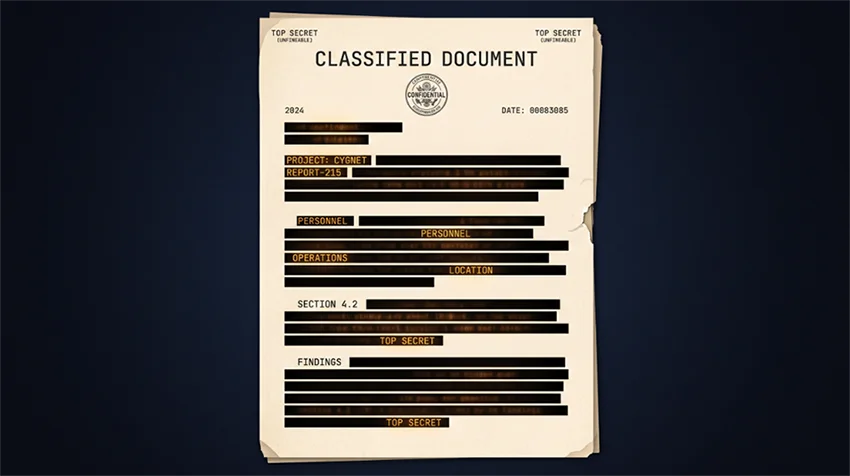
Why Blacking Out Text in a PDF Doesn't Actually Hide It
In January 2019, lawyers for Paul Manafort filed a court document in the Mueller investigation with several passages blacked out. Journalists opened the PDF, dragged their cursor across the black bars, hit copy, and pasted the text into a blank document. The hidden passages read back perfectly. Within hours, the sealed details his defense team had fought to protect were on the front page.
Nobody was careless in the way you'd assume. The black boxes were there. They looked right on screen, and they would have printed right. The document simply never stopped containing the words underneath them.
A PDF is not a picture of a page
This is the part that trips almost everyone up. When you look at a PDF, you're looking at a rendering — a set of instructions your reader follows to draw the page. Among those instructions is the actual text, stored as characters with positions attached. That's what makes a PDF searchable, what lets a screen reader read it aloud, and what lets you select a paragraph and copy it.
When you draw a black rectangle over a sentence, you add one more instruction to the end of that list: draw a filled black box at these coordinates. You have not touched the sentence. You've put an object in front of it. The characters are still sitting in the file at their original positions, fully intact, waiting for anything that reads the text layer instead of looking at the picture.
Which is why the copy-and-paste trick works. Your cursor doesn't care about the black box. It selects the text underneath, because that's the only thing there is to select.
The tools that do this by default
Most people who leak a document this way were using a perfectly reasonable-looking feature:
- Preview on macOS. The rectangle tool in the markup toolbar draws an annotation on top of the page. In some readers the recipient can drag that rectangle aside like a sticky note.
- Highlighting in black. Selecting text in Word or a PDF editor and setting the highlight colour to black changes how it's displayed. The characters are unchanged.
- Comment and drawing tools in Acrobat. These live in a different part of the program from the actual redaction feature, and they look nearly identical when you're done.
- Shapes in PowerPoint or Google Slides before exporting to PDF. Same story — an object in front of text.
What these have in common is that they were designed for annotation, not removal. They're doing exactly what they promise. The promise just isn't the one you needed.
The thirty-second test
Before you send any document with redactions in it, do this:
- Open the finished PDF in any reader.
- Press Ctrl+A or Cmd+A to select everything on the page.
- Copy.
- Paste into a plain text editor — Notepad, TextEdit, anything.
Read what comes out. If the text you meant to hide appears in the paste, your redaction is decorative and the document is not safe to send. If the redacted spots come back empty, or as nothing at all, the text is genuinely gone.
There's a second check worth doing on anything truly sensitive: use your reader's search function to look for a name or number you redacted. Search reads the text layer directly, so it will find a word that's sitting invisibly under a black bar.
What actually removing text looks like
Real redaction deletes the underlying content and then covers the space. There are a few ways to get there.
Print it and scan it back in. Crude, slow, and completely effective. The scan is a photograph of a page, so there is no text layer left to leak. The tradeoff is that your whole document stops being searchable and the file gets much larger.
Screenshot the page and rebuild the PDF from images. The same idea with fewer steps, and the same tradeoff.
Use a tool that flattens the page. This converts the visible page — black boxes included — into a single image, then rebuilds the PDF around it. The characters underneath are discarded in the process because there's nowhere left for them to live.
Our Redact a PDF tool takes the third route. You draw boxes over what you want gone, and the page is rasterised so that the covered text is genuinely removed rather than hidden. Then run the copy-paste test on the result anyway. It takes half a minute and it's the only proof that counts. Sign up for free today!
The other thing that leaks
Text under a box is the famous failure, but it isn't the only one. A file can also carry information that never appears on the page at all:
- Document metadata — author name, the software used, the original filename, and sometimes the full path it was saved from, which can quietly reveal a client name or an internal project code.
- Earlier revisions. Some PDFs are saved incrementally, appending changes rather than rewriting the file. A previous version of the page can survive inside the same document.
- Embedded images. A photo dropped into a document brings its own EXIF data along, which can include the camera, the timestamp, and GPS coordinates. If you're publishing images on their own, stripping that metadata is a separate step worth taking.
One more consideration
There's an awkward circularity in redacting a document online. The file you're most careful about is, by definition, the one you least want sitting on a stranger's server. Most PDF sites upload your document, process it somewhere you can't see, and hold it for some number of hours before deleting it.
Our tools run entirely in your browser. The PDF is opened and modified by JavaScript on your own machine, and the file never leaves it. That isn't a marketing distinction for this particular task — it's the whole point of it. You can confirm it yourself: disconnect from the internet after the page loads, and the tool still works. Sign up for free today and start really redacting your pdfs!
Short version
A black rectangle is paint on glass. It hides the text from your eyes and from nobody else. Whatever method you use, finish the job the same way every time: select all, copy, paste, and read what you actually sent.
Redact a PDF properly
Free to start, and the document never leaves your machine — which is the whole point when the file is one you're being careful with.
Related Links
- How to compress PDFs and images to an exact file size — for when a portal or an email limit won't take the file as-is.
- Merge PDFs — combine the redacted pages back together with the rest of the packet.
- Compress PDF to Size — flattening a page turns text into an image, so a redacted PDF often comes out noticeably bigger.
- Sign a PDF — add a signature without printing, scanning, or uploading the document anywhere.